Phone System How-to

How to call a phone from a computer in 5 simple steps

8 min read

Updated on March 13, 2026

Published on March 13, 2026

How to call a phone from a computer in 5 simple steps

Ever wish you could skip the desk phone and simply call a phone from the computer instead? For busy teams and contact center leaders, that convenience can save time, cut costs, and streamline communication. The challenge is knowing where to start and how to set it up the right way.

In this post, we’ll walk you through exactly how to call a phone from a computer in five simple steps. You’ll learn what’s required, how Zoom makes it possible, and why placing a phone call from a computer can give your team the flexibility to connect faster and work smarter.

How does making a call from a computer work?

When you make a call from a computer, your voice doesn’t travel through landlines like a traditional desk phone or connect via cell towers like mobile phones. Instead, it uses Voice over Internet Protocol (VoIP) to move through the internet. With the right software, your computer acts like a phone, letting you place calls to mobile numbers, landlines, or even other VoIP-enabled computers.

Behind the scenes, tools like Zoom Phone connect your computer to the broader phone network through VoIP. That means you can dial and talk just as you would on a regular phone, but with the flexibility to do it almost anywhere you’re online with a compatible device.

All you need is a reliable internet connection, a microphone (or headset), and an online phone service like Zoom Phone. From there, it’s simple to start a phone call from a computer in just a few clicks.

How to call a phone from a computer with Zoom

Calling a phone from a computer is simple once you know where to start. First, purchase a Zoom Phone plan and download the app, then follow the steps below to set up and place your first call.
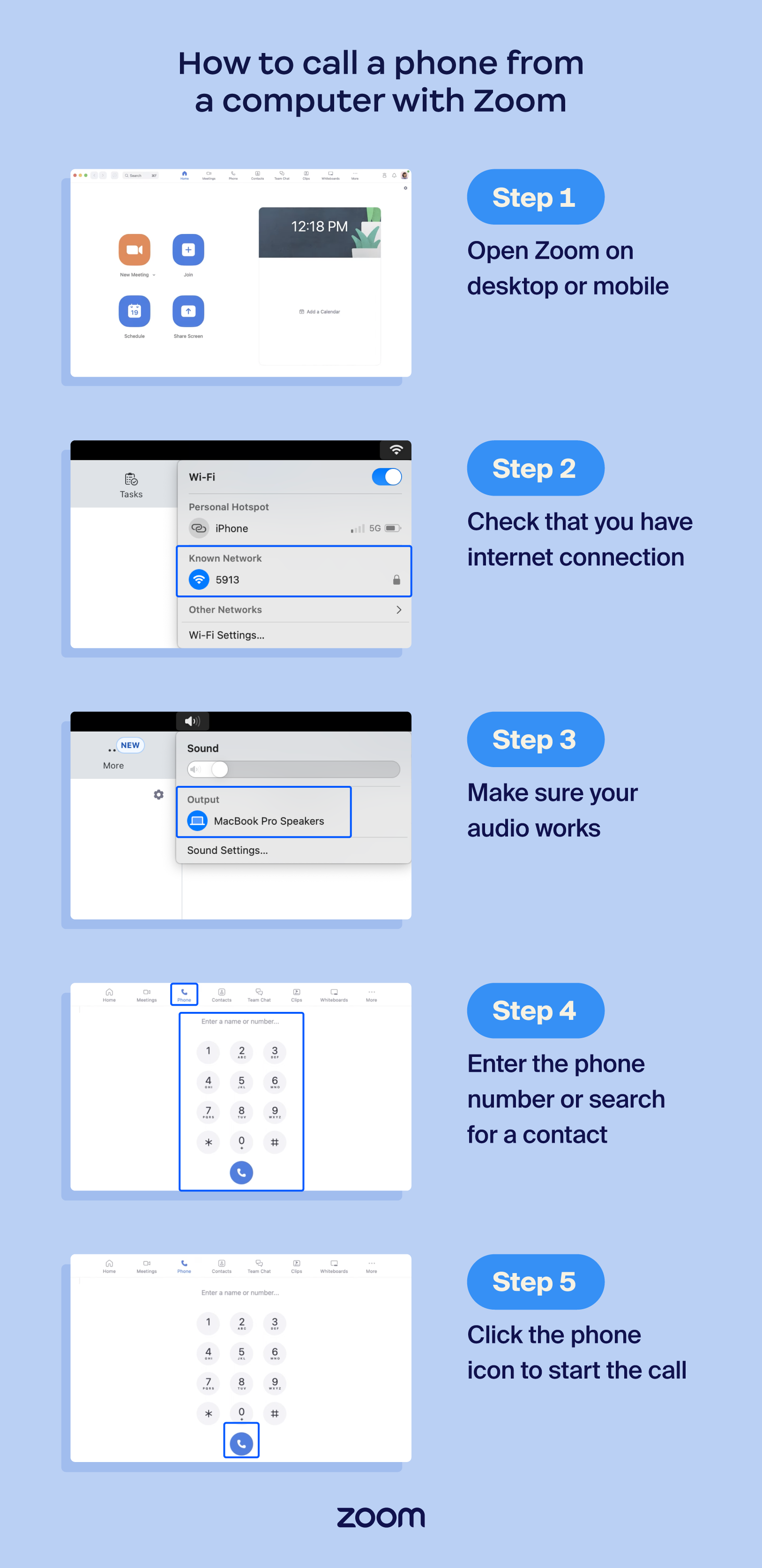
screenshots of steps to call a phone from a computer

1. Open Zoom on desktop or mobile

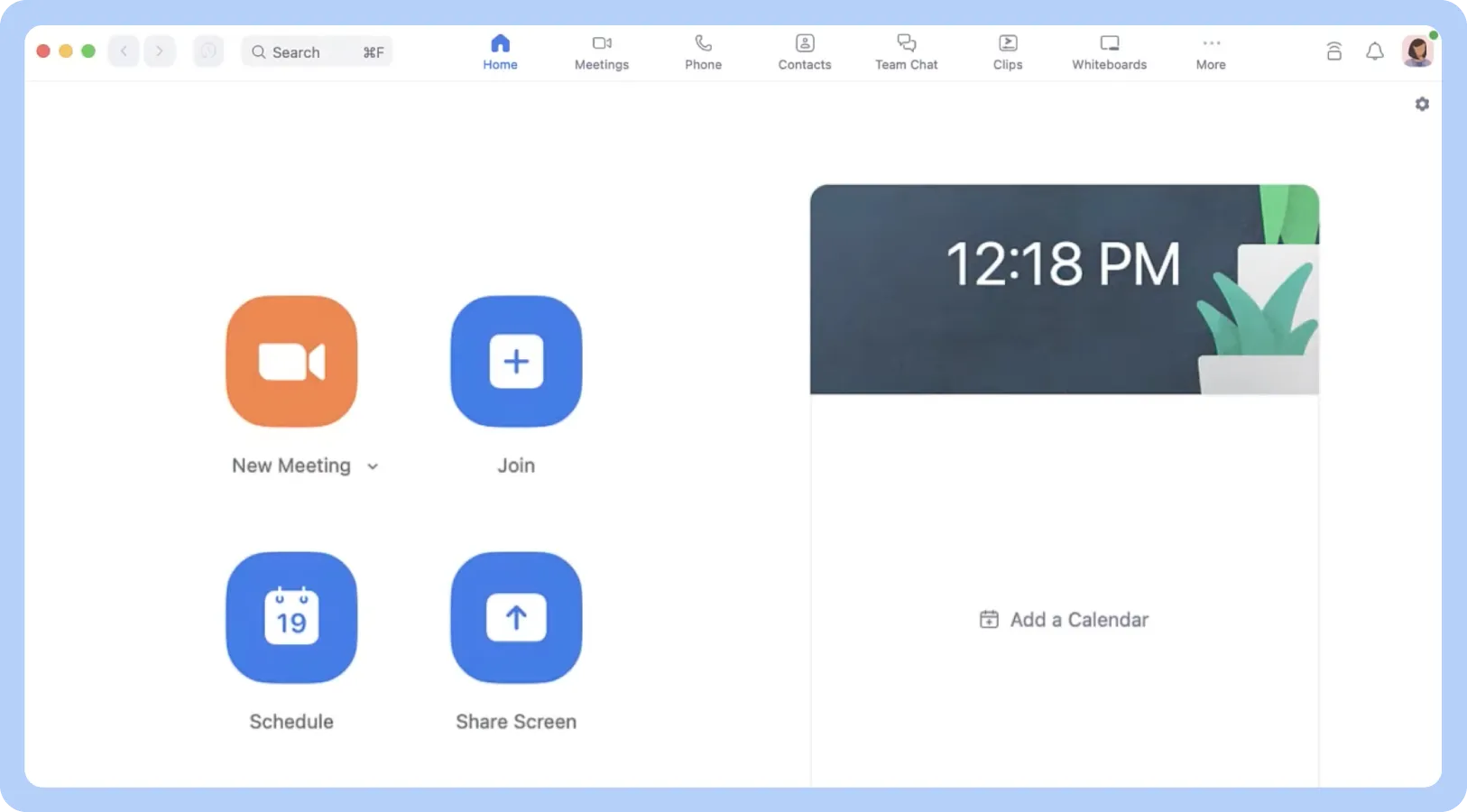
A screenshot of Zoom’s interface

To start, launch the Zoom app on your computer. You’ll need to sign in to your account with a Zoom Phone license enabled. You can also access the same calling features from the Zoom mobile app, so you can start a call at your desk or on the go.

2. Check that you have an internet connection
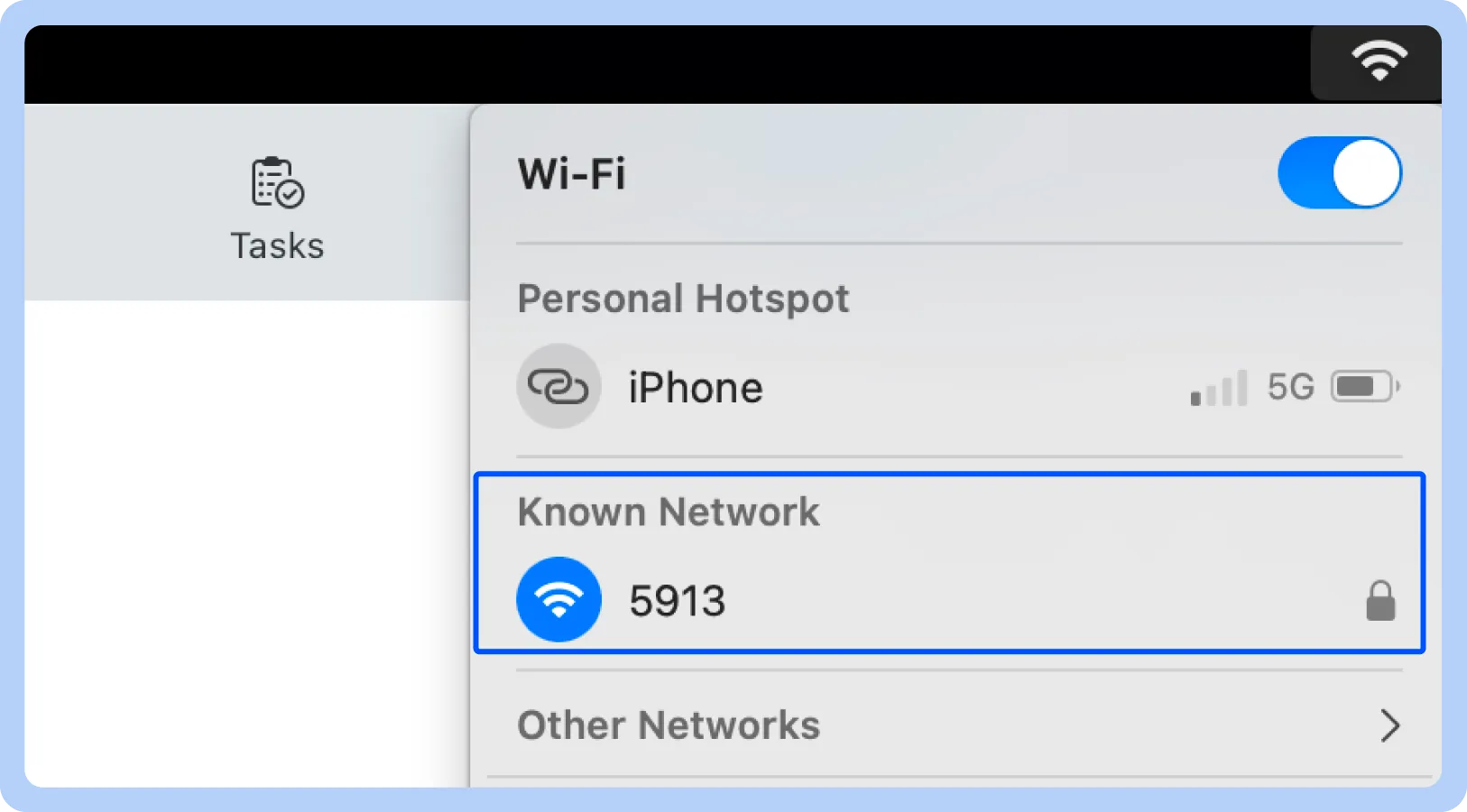
A screenshot displaying how to check internet connection.

A stable internet connection is essential for a smooth call from the computer. Test your connection before placing a call to avoid disruptions or dropped audio.

3. Make sure your audio works
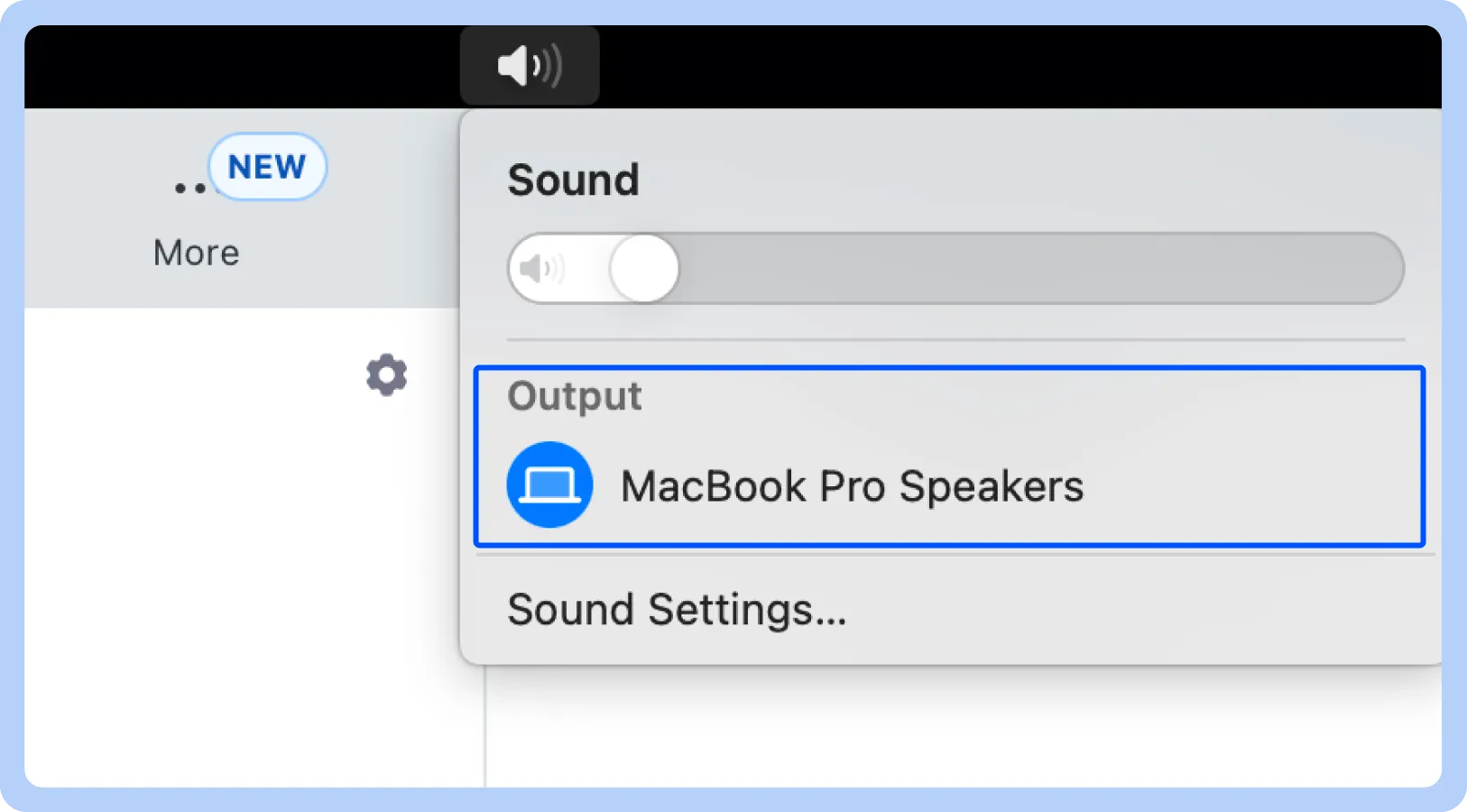
A screenshot displaying how to test that audio is working.

Confirm that your microphone and speakers (or headset) are selected and working in Zoom. You can run an audio test in your settings to check input and output before starting the call. 

4. Enter the phone number or search for a contact
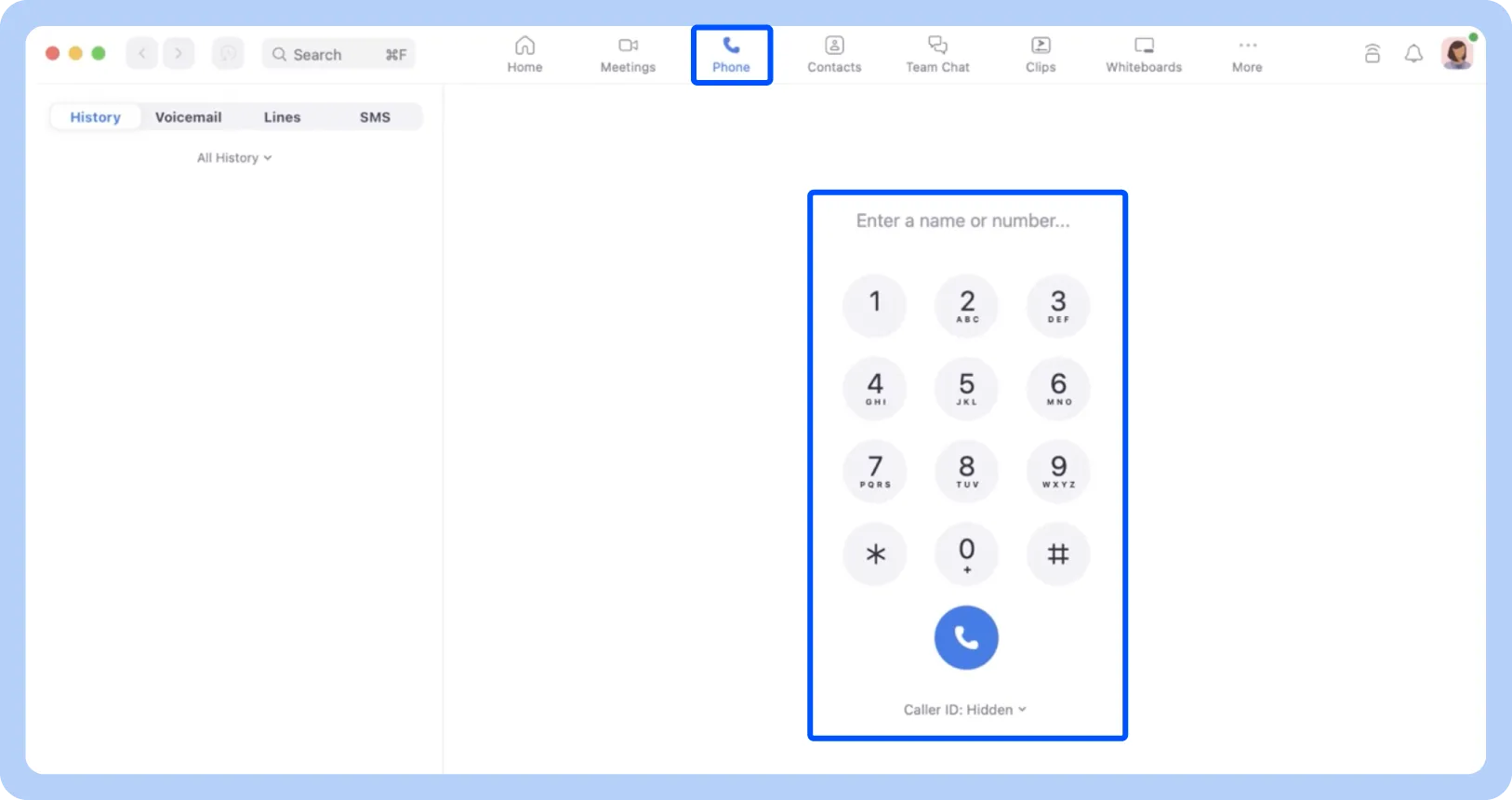
A screenshot displaying the Zoom Phone interface.

In the Zoom app, go to the Phone tab. From there, you can type in the phone number directly or search your saved contacts to quickly connect.

5. Click the phone icon to start the call 

A screenshot of the Zoom Phone interface.

Once the number or contact is entered, simply click the phone icon. Zoom will immediately place the call, connecting you to your recipient.

Benefits of making calls from a computer for call centers

Making calls from a computer can transform how call center phone systems operate. From faster onboarding to better customer experiences, here are the key benefits your team can gain:

  • Faster onboarding for new agents: New team members can start making calls immediately without learning complex phone systems. Zoom’s intuitive interface helps agents get comfortable quickly and start contributing from day one.
  • Improved customer experience: With integrated communication channels like chat, video, and call history, agents can respond faster and more effectively, which can help keep customers engaged and satisfied.
  • Lower operating costs: Using a VoIP system through a computer reduces the need for physical phone lines and hardware, saving money on equipment, maintenance, and telecom fees.
  • Easier scaling: Adding new agents or expanding your cloud contact center is simple — no extra phones or lines are required. Teams can grow quickly while keeping workflows seamless.
  • Access to additional features: Agents gain tools like call recording, voicemail to email, and advanced VoIP settings, helping to make every phone call from a computer more productive.

How to choose the right platform to make calls from a computer

Choosing the right VoIP provider for your team can make a big difference in efficiency and customer satisfaction. When evaluating platforms, focus on features that impact daily operations and long-term growth.

  • Reliability and call quality: Find a platform with a consistent connection and clear audio so every call goes smoothly. Uninterrupted calls reduce frustration for both agents and customers.
  • Security and compliance features: Look for solutions that are designed to help you protect sensitive customer data and support compliance with industry regulations. This can give your team and customers more peace of mind.
  • Integration with CRM and workforce tools: Platforms that connect with your existing systems streamline workflows and give agents the context they need on every call.
  • Scalability for growing call centers: Choose a platform that grows with your team, whether adding new agents or expanding capabilities, without needing extra hardware.
  • Affordability: Consider both upfront costs and ongoing fees. A solid hosted VoIP platform combines essential features with cost efficiency and supports sustainable growth.

Start making calls from your computers with ease

The ability to call a phone from a computer is now more accessible for contact centers. With Zoom Phone, your team can learn how to call someone on a computer and take advantage of features that are designed to improve customer experiences and team productivity. 

If you’re looking to upgrade your calling setup, start with Zoom Phone. Request a demo to see how Zoom can help make phone calls from a computer faster, clearer, and more productive. 

Our customers love us

Okta
Nasdaq
Rakuten
Logitech
Western Union
Autodesk
Dropbox
Okta
Nasdaq
Rakuten
Logitech
Western Union
Autodesk
Dropbox

Zoom - One Platform to Connect