Experience the power of Zoom where your team already talks. Start video meetings, make phone calls, and get help from AI Companion without leaving your daily conversations in Slack.
Start, join, call, chat, summarize. Do it all with Zoom integrations for Slack.
Can we talk live?
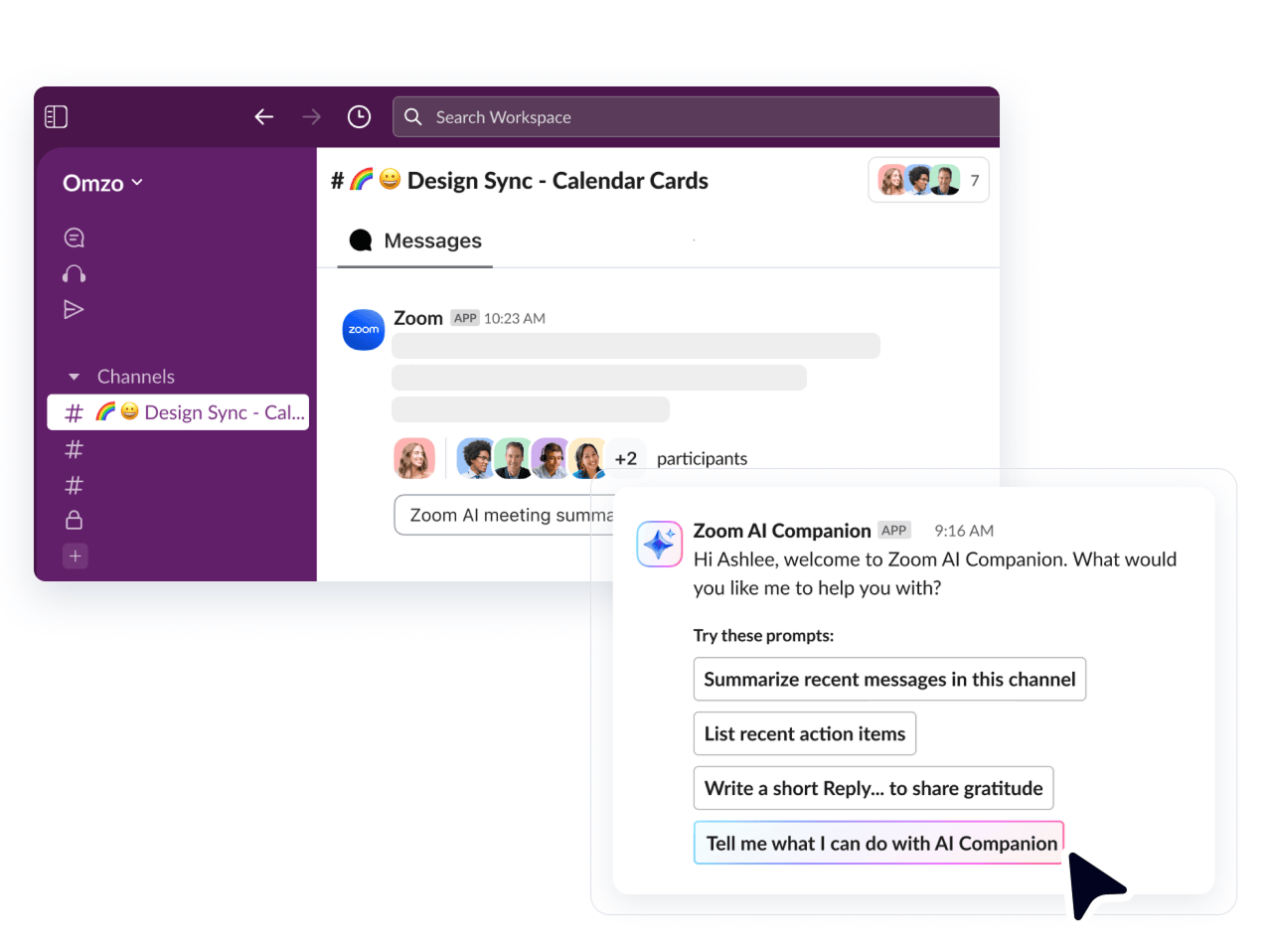
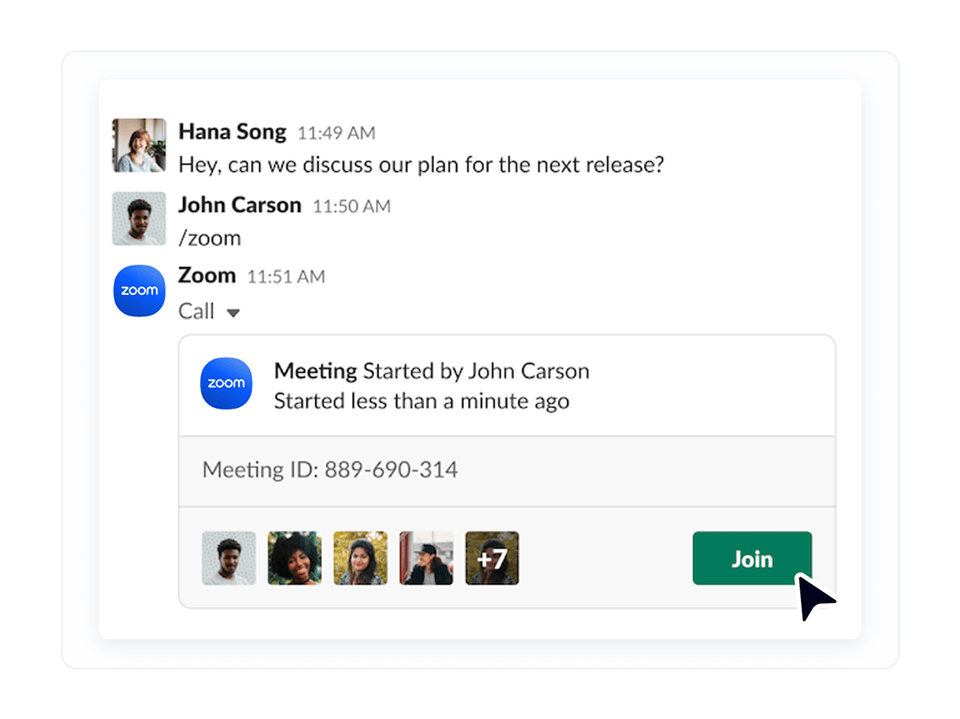
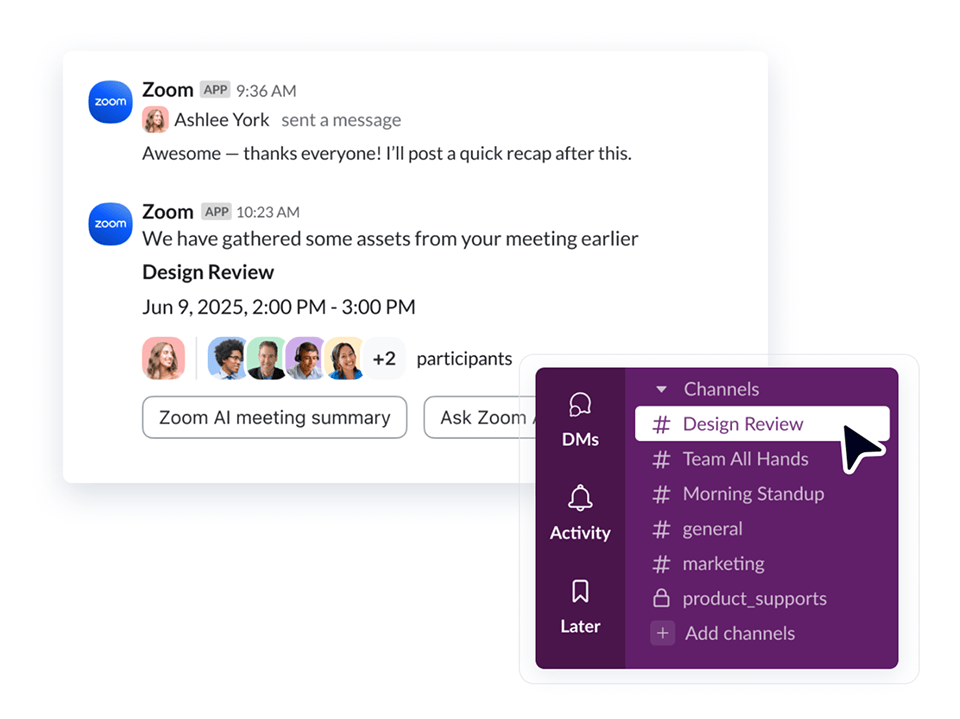
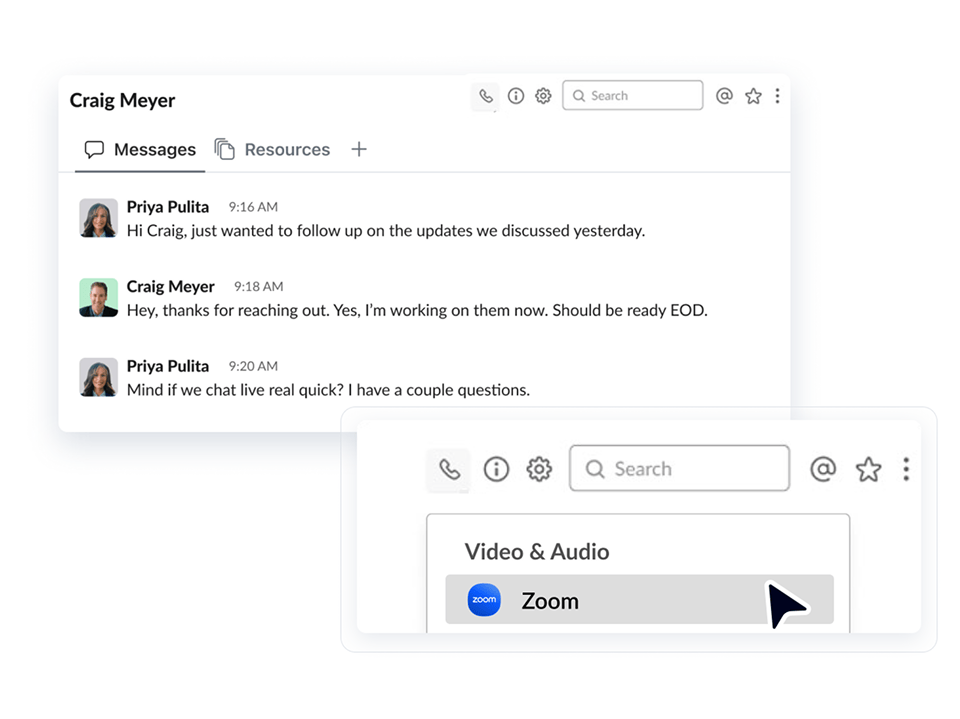
Transition effortlessly between Slack messages and live Zoom conversations while getting more done with AI insights and automation. Get the best of both worlds with HD video and audio for up to 1,000 participants, plus built-in calling and Slack-native access to AI Companion.*

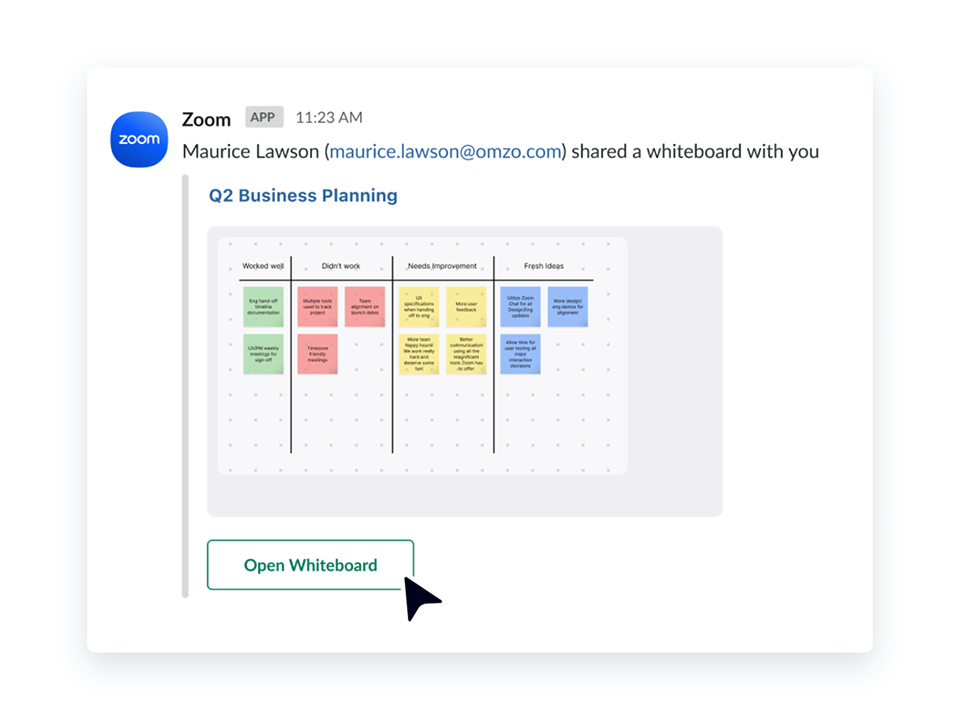
*Custom AI Companion paid add-on required to access AI Companion side-panel app within Slack and to connect AI Companion with third-party applications. Large Meetings add-on may be required for expanded meeting participant capacity.
**Meeting Summary and cloud recording are not supported for Basic/Free Zoom users.
***To use Zoom Phone within Slack, your account must have an active Zoom Phone subscription.

FAQs
Got questions? We’ve got answers.
To integrate Zoom with Slack, simply add the Slack app from the Zoom App Marketplace. You may need to contact your IT administrator to approve the app for your account. Zoom can be integrated with Slack for individual use or organization-wide. Additional configuration options are available in your Slack Workspace Settings. Certain features like Zoom Phone and Slack-native access to AI Companion require a paid subscription.
Here's a list of available Slack commands for Zoom:
/zoom help - List available Zoom commands
/zoom - Start a meeting using your default settings
/zoom join me - Start your personal meeting room
/zoom meeting [Meeting Topic] - Start a Zoom Meeting with a topic
/zoom join or /zoom join - Join a Zoom Meeting
/zoom call [@contact or phone number] - Call another Slack user or any phone number
/zoom logout - Logout from Zoom in all your Slack channels
/zoom clip - Record a video in Zoom Clips
/zoom - Start a meeting using your default settings
/zoom join me - Start your personal meeting room
/zoom meeting [Meeting Topic] - Start a Zoom Meeting with a topic
/zoom join or /zoom join - Join a Zoom Meeting
/zoom call [@contact or phone number] - Call another Slack user or any phone number
/zoom logout - Logout from Zoom in all your Slack channels
/zoom clip - Record a video in Zoom Clips
Yes! Zoom AI Companion meeting summaries are available for everyone with a paid Zoom Workplace subscription and a Slack account through the Zoom app for Slack. Zoom customers with the Custom AI Companion paid add-on can access full AI Companion features directly in Slack via side-panel, including the ability to schedule meetings, ask questions, summarize and generate content, prepare for calendar events, take action through connected applications, and much more.
Zoom Workplace users with a free Basic account can use certain features of Zoom and Slack together, including the ability to manage meetings with slash commands, access continuous meeting chat channels, and get meeting notifications. AI summaries require a paid Zoom Workplace subscription, and calling features require a Zoom Phone subscription. Meetings with large numbers of participants may require the Large Meetings add-on. To access the full AI Companion side-panel in Slack, you will need a Zoom Workplace subscription with the Custom AI Companion paid add-on. Visit https://www.zoom.us/pricing to learn more.